
Docs · LLMs and developers
Version3.14.0A short tour of the Chat, Tasks, and Team tabs, your EA's activity, and the profile pages in the workspace.
Illustrated tour
Everything described here is what teammates see after signing in to a workspace URL such as https://example-com.achiral.ai.
The workspace has three main tabs:
Chat
Tasks
Team
Your EA's name sits at the right end of the same tab bar. The header and footer around the tabs are described in Home base.
Chat
Chat is where you talk with Chiro, your EA, teammates, and group participants. It includes conversation history, the current message thread, and the input. On wide screens, the Assemble team rail and Today's priorities sit on the right.
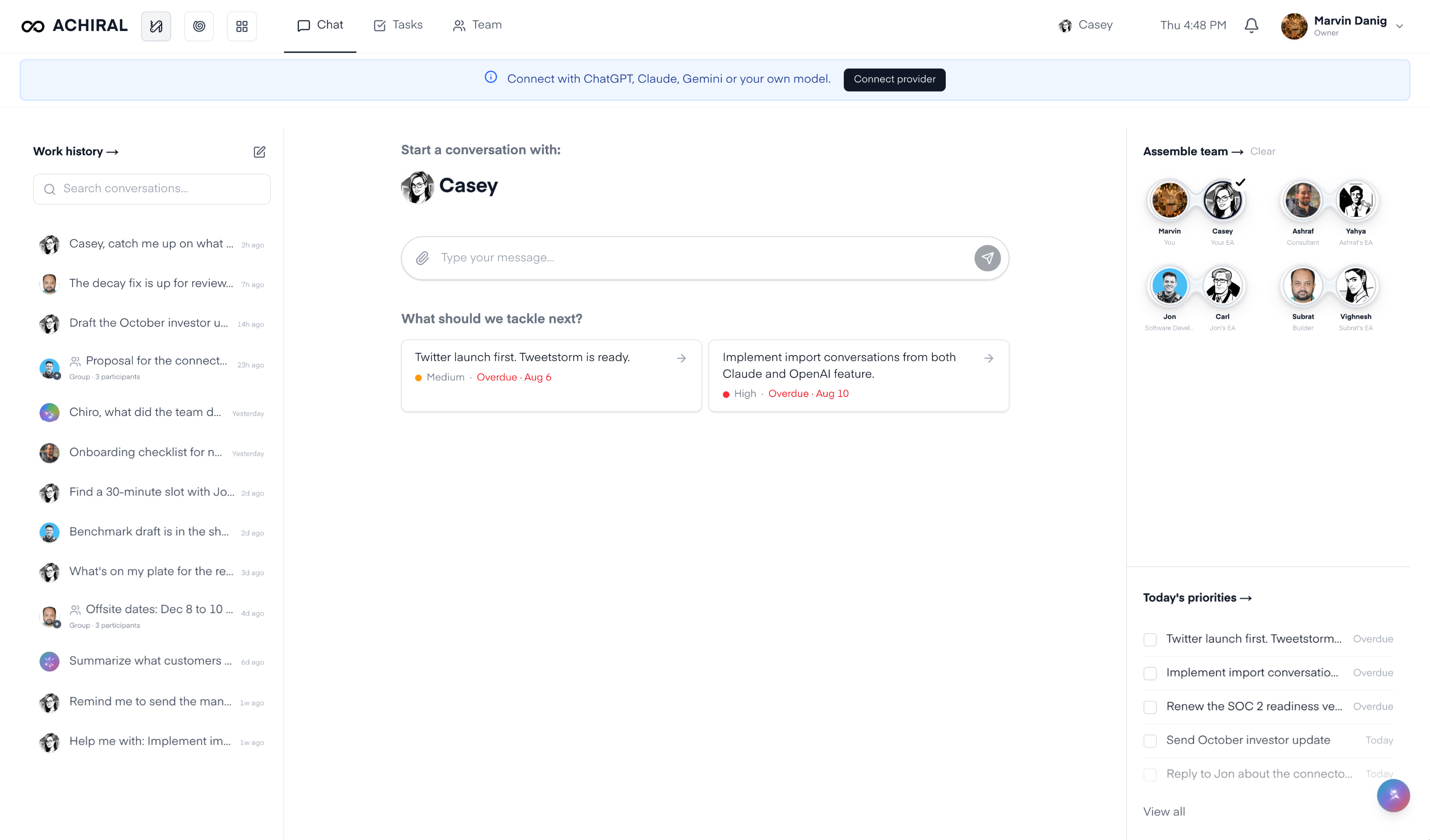
Before a conversation is open, the chat surface waits for you to choose participants. Once a conversation is active, the header shows who is in it.
The input supports replies, file attachments, and assistant mentions when enabled for your organization.
What should we tackle next?
An empty chat with your own EA shows What should we tackle next? with up to two of your open tasks. Your other open tasks come before the setup tasks Achiral adds at onboarding. Each choice shows the task's title, priority, and due date, and does one of three things:
- A task that points to a workspace page, such as Complete your profile, opens that page.
- A setup task that is done by asking your EA, such as asking your EA to catch you up on the team, sends its prompt to your EA and marks the task complete.
- Any other task sends
Help me with: <task title>to your EA.
With no open tasks, the single choice is Catch me up on what changed since yesterday. The choices disappear once the conversation has messages, and do not appear in chats with a colleague, a colleague's EA, or a group.
Dynamic teams
A dynamic team is assembled on the fly for the work in front of you, instead of a fixed group such as Marketing, Sales, or Sourcing. Pick the teammates and EAs a conversation needs from Assemble team in the right rail.
Use Dynamic teams for the detailed behavior.
Tasks
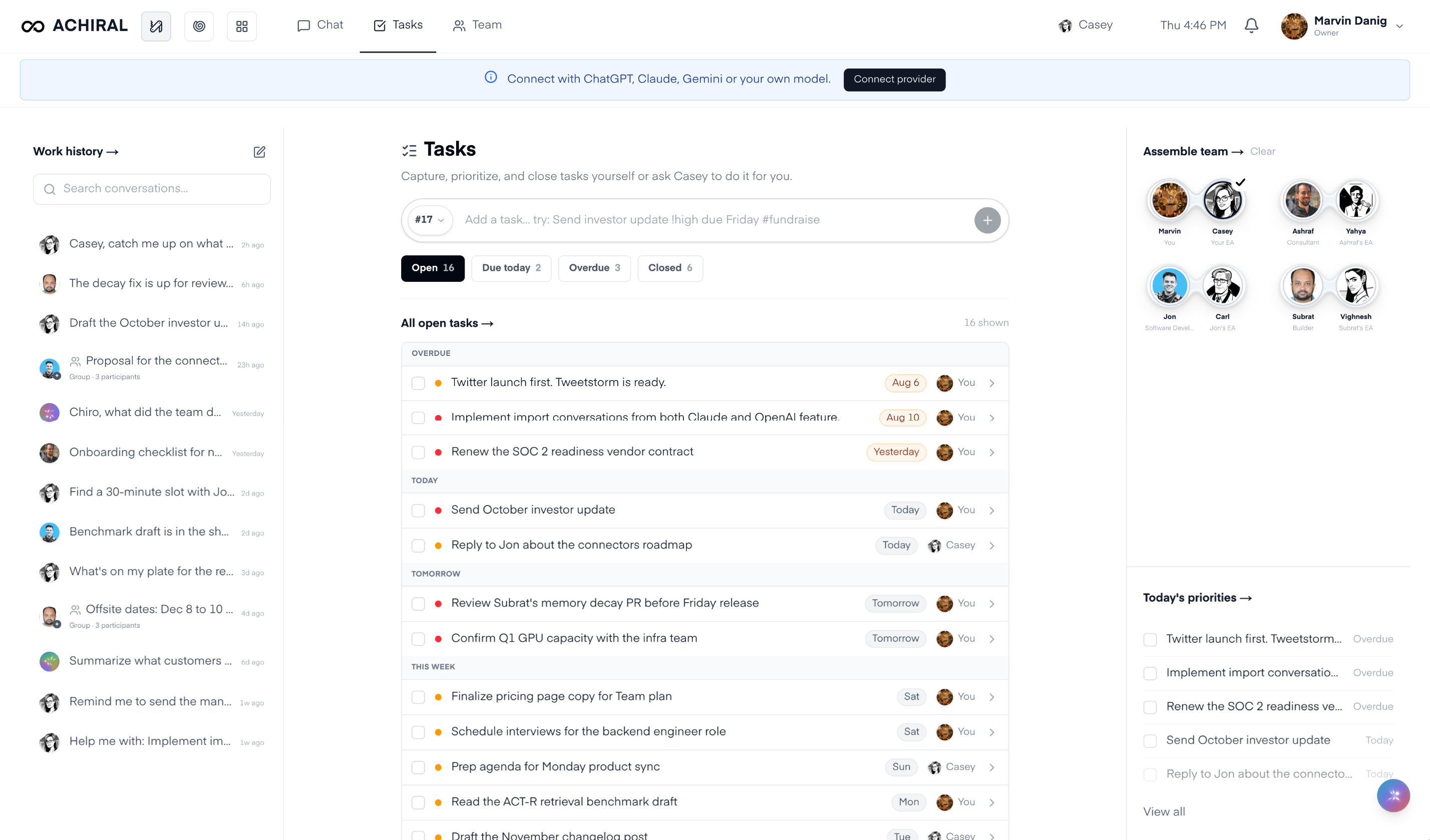
The Tasks tab shows your open and closed tasks. You can add tasks yourself or ask your EA to add them. See Collaborative tasks.
Team
The Team tab opens the full team directory. Use it to search for people, open a member's profile or their EA's profile, or pick people and assistants for a new conversation.
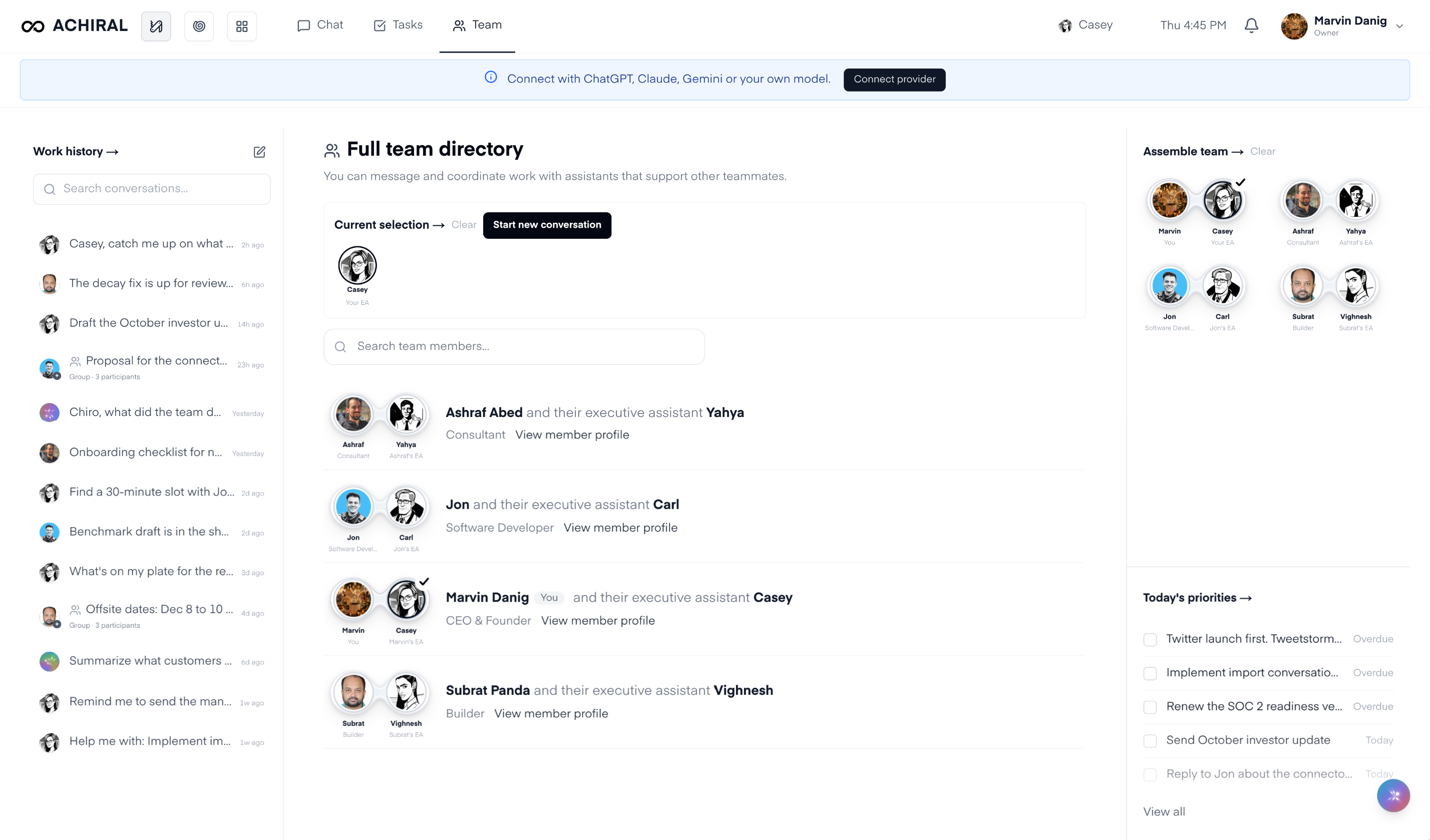
Use Team directory for the detailed behavior.
Your EA's activity
Your EA's name at the right of the tab bar opens its activity: the conversations it took part in with teammates and assistants. A number next to the name counts the conversations that need your review.
Profiles
Each member has a profile at /team/<name>, and /profile opens your own. Each EA has a profile at /assistants/<slug> with Profile, Health, Memory, and Settings tabs; which tabs you see depends on whose EA it is and on your role. See Team directory and Meet Chiro and your EA.
What to read next
Home base explains how the signed-in workspace fits together and lists every workspace address. Use the linked pages above when you want details about each tab.